








Akai MPC Renaissance and Studio - Routing Audio to Tracks in Pro Tools
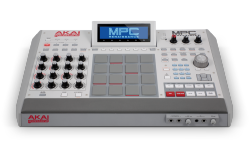 This guide explains the process of how to route the audio from individual tracks in the MPC plugin to individual tracks in Pro Tools. Utilizing this feature is great for creating scratch drum/synth tracks without cluttering your sequences. You could also use this feature to record real-time effects without saving over any automation.
- Open Pro Tools Express, and create a new blank session.
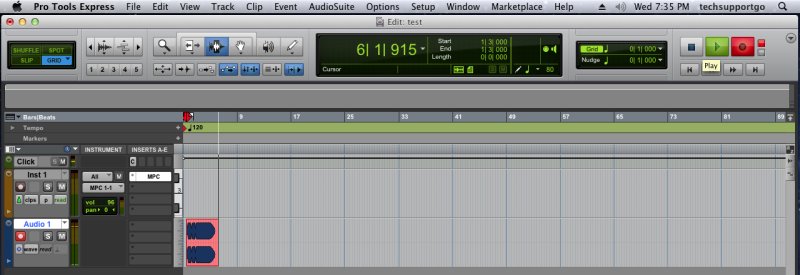
- First, we need to create the tracks we'll be using. One for the MPC plugin, and one to record the audio from it. Do this by going to Track > New Track.
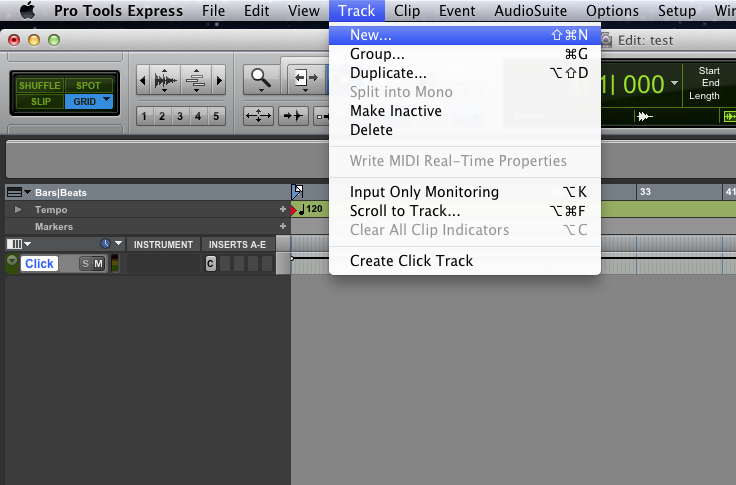
- We'll create the track for the MPC plugin, now.

- Next, we'll create the Audio track to record to. Head to Track > New Track, again.

- Once you've created the Audio 1 track, be sure to record enable it. The Record Enable button is indicated below by the green circle.
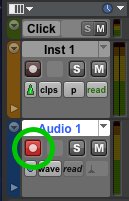
Note: You do not need to record enable the Inst 1 track unless you want to record the MPC's MIDI output into Pro Tools. - Now we need to load the MPC plugin to the Inst 1 track. Do this by clicking the top insert box. Choose multichannel plug-in > Instrument > MPC (stereo).
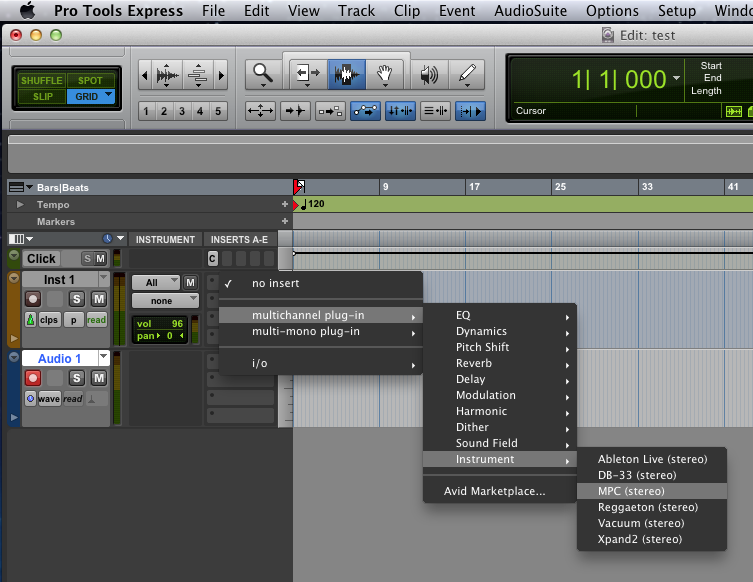
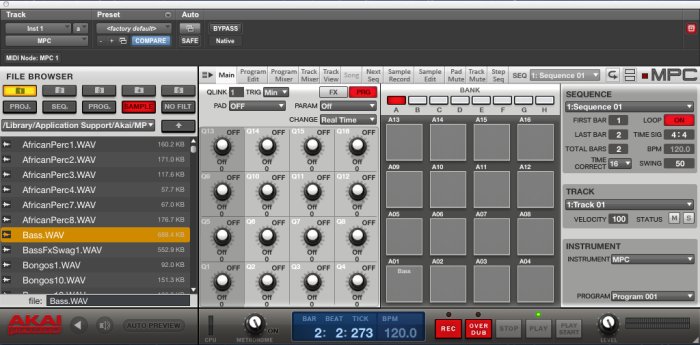
- The MPC plugin's interface should appear on your screen. Now you can load samples to the pads, or load a plugin as the MPC's Instrument on Track 01.
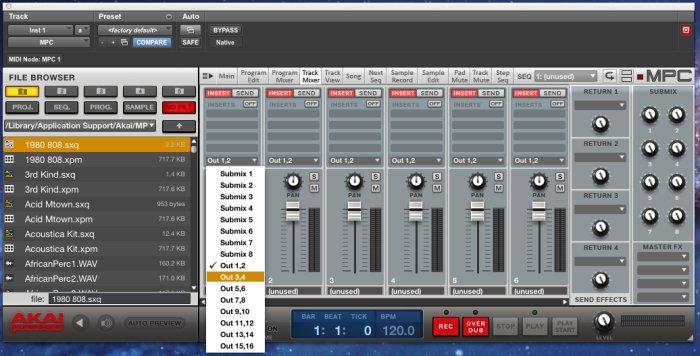
- On your MPC hardware, press SHIFT + TRK MIX; TRK MIX is located under the MODE section. Set Track 01's output to Out 3,4.
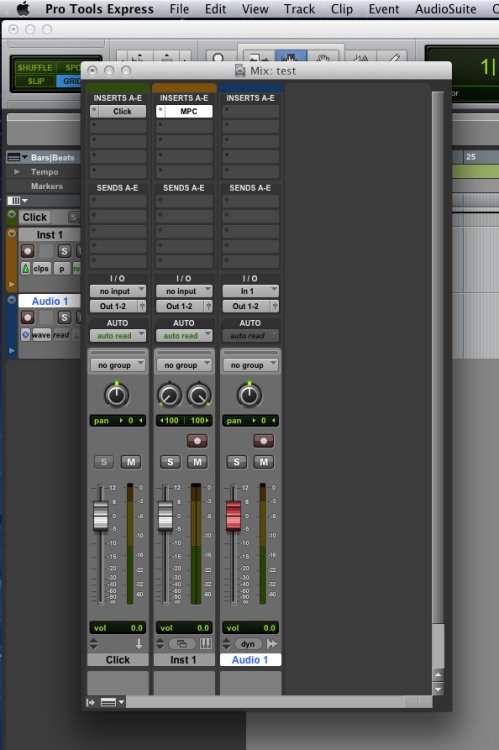
- Let's jump back to Pro Tools and setup the Audio 1 track to receive the MPC's signal. Go to Window > Mix (Command + = on Mac, Ctrl + = on Windows). You should now see the Mix window on your screen.
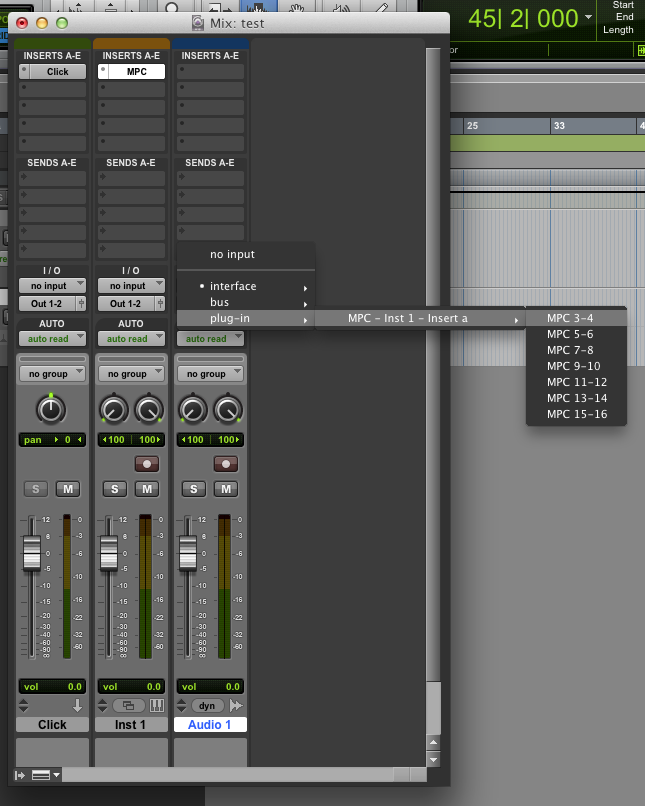
- Under the I/O section, set Audio 1's input to plug-in > MPC – Inst 1 – Insert a > MPC 3-4.
- At this point, you are set up to record the raw audio output from the MPC plugin. All you need to do is let the creativity flow!
Also See...
Akai Pro Technical Support & Warranty Service
Whether you are a customer or dealer, if you already own an Akai Pro product, or if you just have pre-sales questions, the Akai Pro technical support team is available to help!
Visit the link below to connect with any of the following support options: online community support, phone support, email support.

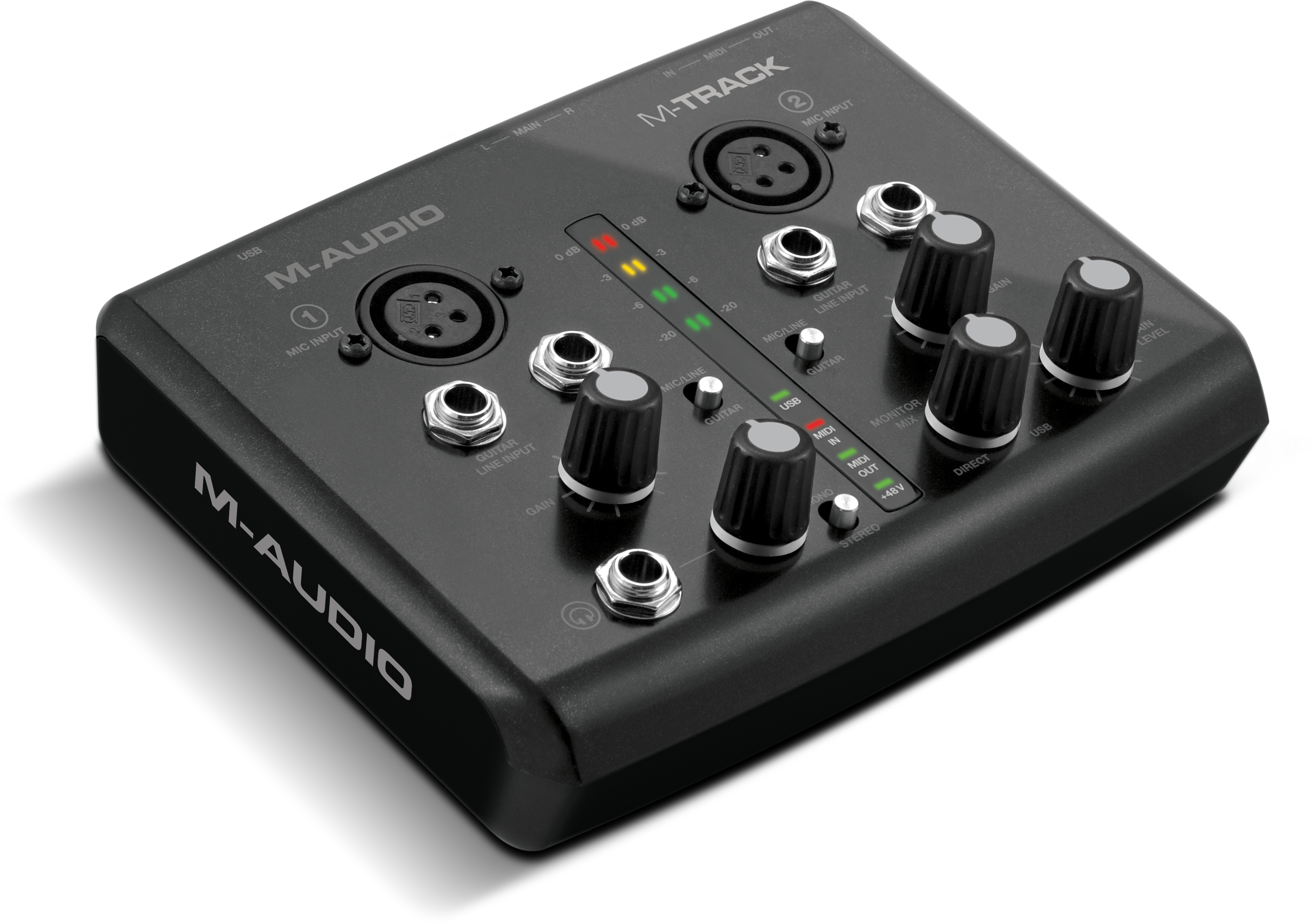 When connecting your MIDI interface, for example the M-Audio M-Track or Akai MPC series controller, to a computer with a Mac operating system, you may sometimes face communication difficulties if you have previously had a DigiDesign product installed on that computer. This article walks through some common symptoms and how to resolve those connection troubles that may occur.
 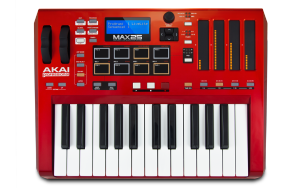 The Akai MAX25 has the ability to control nearly any parameter in Propellerhead's Reason software. Reason Remote is a protocol developed by Propellerhead to allow the ability for a single control surface to map to each of the modules in Reason, including the Transport Controls. Akai Professional has developed and included all the files necessary to enable Reason to find the MAX25 and map its controls to whatever module you have selected in the Reason sequencer. This guide walks through how to set it up.