
AIR Ignite - Download and Installation
 AIR Music Technology's Ignite software is an easy to use music production software that helps maximize your creativity and jump-start new musical ideas. This guide covers how to download and install Ignite on your computer.
Contents
Download Ignite
There are three ways to obtain the AIR Ignite software.
- You can purchase Ignite from the Mac App store for a Mac OSX operating system.
- You can purchase Ignite directly from the AIR Music Tech Ignite product page for both a Windows PC or a Mac OSX operating system.
- You can redeem your free copy of Ignite that comes with a purchase of a qualified , , or product.
Mac App Store
Visit the to obtain the Ignite software. Follow the suggested steps to purchase, download, and install it.
Note: If you have a previous version of Ignite installed on your computer, we recommend uninstalling the previous version prior to installing the latest.
AIR Music Tech Ignite Product Page - Purchase
You can purchase Ignite from the . To do so:
- Go to the .
- Choose the Buy Now button.

- In the window that opens, choose the correct version of Ignite for your computer operating system.

- In the following window, enter the requested information, then press Continue.

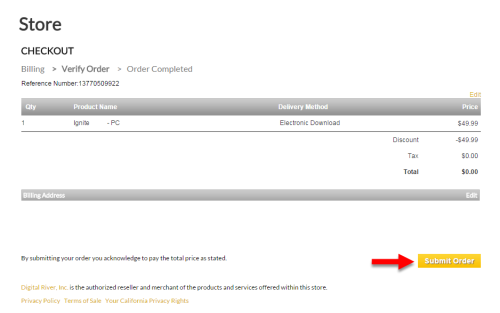
- You will be brought to the CHECKOUT page. Review your order and choose Submit Order.
- The following page will contain your Order Confirmation information as well as the steps to take to obtain the Ignite download.
Note: We recommend printing this page and the linked Invoice for your records. You will also receive a follow up e-mail confirmation which contains the same Order Confirmation information as well as the steps to take to download Ignite.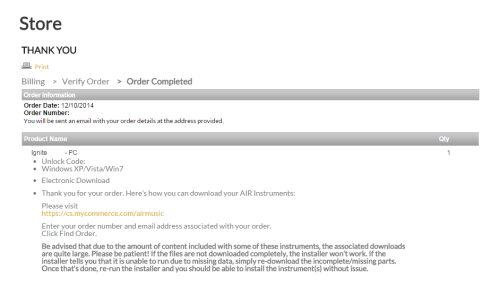
Important: Note and write down the Unlock Code located on this confirmation page as you will need it later to authorize the Ignite software. This code will also be included in the e-mail confirmation and may be labelled as a Digital Rights code. Keep this in a safe place for future reference if necessary. - Follow the steps suggested to obtain the Ignite download by visiting the suggested link:
- Once there, enter your Order Number and Email address and then choose Find Order.

- Finally, in the window that opens, choose Begin Download to download Ignite.

AIR Music Tech Ignite Product Page - Redeem
To redeem your complimentary download of AIR Ignite with a purchase of a qualified , , or product, follow the steps suggested below. To determine if your product comes with a complimentary download of AIR Ignite, visit your specific product's product page.
Note: The free download of AIR Ignite with a qualified hardware purchase does not require Ignite to be authorized. Simply follow the steps suggested below to obtain the installation file, install Ignite, and enjoy!
- First, locate the serial number on your hardware product. In most cases, it will begin with a (21) and look similar to the following image.

- Go to the .
- Choose the Redeem button.

- On the page that opens, fill out all of the requested information and then press Submit.

- You will then be brought to a confirmation page and an e-mail will be sent to the provided e-mail address with the installation instructions.

- Locate the e-mail that was sent to you and click on the included link. This will bring you to your personal AIR Ignite download page. Click on the Download Ignite for Windows / Mac button to begin the Ignite download.

Install Ignite
Once Ignite has been downloaded, install it. To do so:
- Locate the downloaded Ignite installation file and run it to begin the installation.

- You may receive a Security Warning window like in the following screen shot. The Ignite application is perfectly safe to install. Choose Run.

- The Ignite Setup wizard will open. Follow the steps to install Ignite. First, Agree to the terms and conditions and then choose Install.

- The installation wizard will show the installation progress. This may take some time, so be patient.

- Once the installation completes, choose Close.

Note: If you have received the free download of AIR Ignite with the purchase of a qualified , , or product, you can begin using Ignite immediately. Otherwise, follow the steps suggested below to authorize the newly installed Ignite software.
Authorize Ignite
Once Ignite has been fully and successfully installed, you may need to authorize it. To do so, follow the steps suggested below.
Note: If you have obtained a complimentary copy of Ignite with the purchase of a qualified , , or product, you will not need to authorize Ignite and can simply begin. Enjoy!
- Open Ignite. In the window that opens, choose Activate.

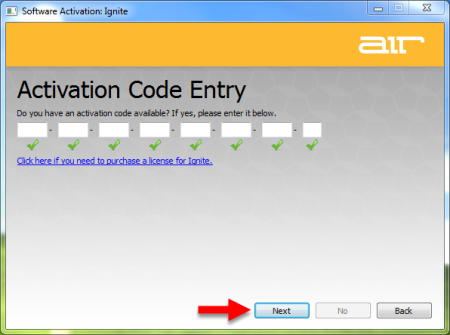
- Enter the Activation Code / Digital Rights Code into the Activation Code Entry window, then press Next.
- In the following window, enter your e-mail address and choose whether to Register with your existing iLok.com account or not. Then choose Continue.
Note: You do not need to own an iLok in order to activate and use AIR Ignite.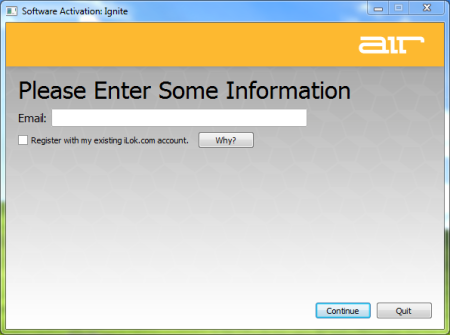
If you enter your e-mail only and choose not to register with an existing iLok user account, go to Step 4.
If you choose to Register with your existing iLok user account, the next window will request that you enter your iLok.com account credentials. Once entered, choose Next.
Then in the following window, choose your preferred activation location and press Next. Then proceed to Step 5.
- Decide the location where you would like to store your Ignite license and choose Store.

- The Ignite installation wizard will show that you have successfully activated Ignite. To finish, choose Continue.

And that's it! Enjoy!
AIR Technical Support and Warranty Service
Whether you are a customer or dealer, if you already own an AIR product, or if you just have pre-sales questions, the AIR technical support team is available to help!
Visit the link below to connect with any of the following support options: online community support, phone support, email support.